How to Make a Reading Log in Excel (Step by Step)
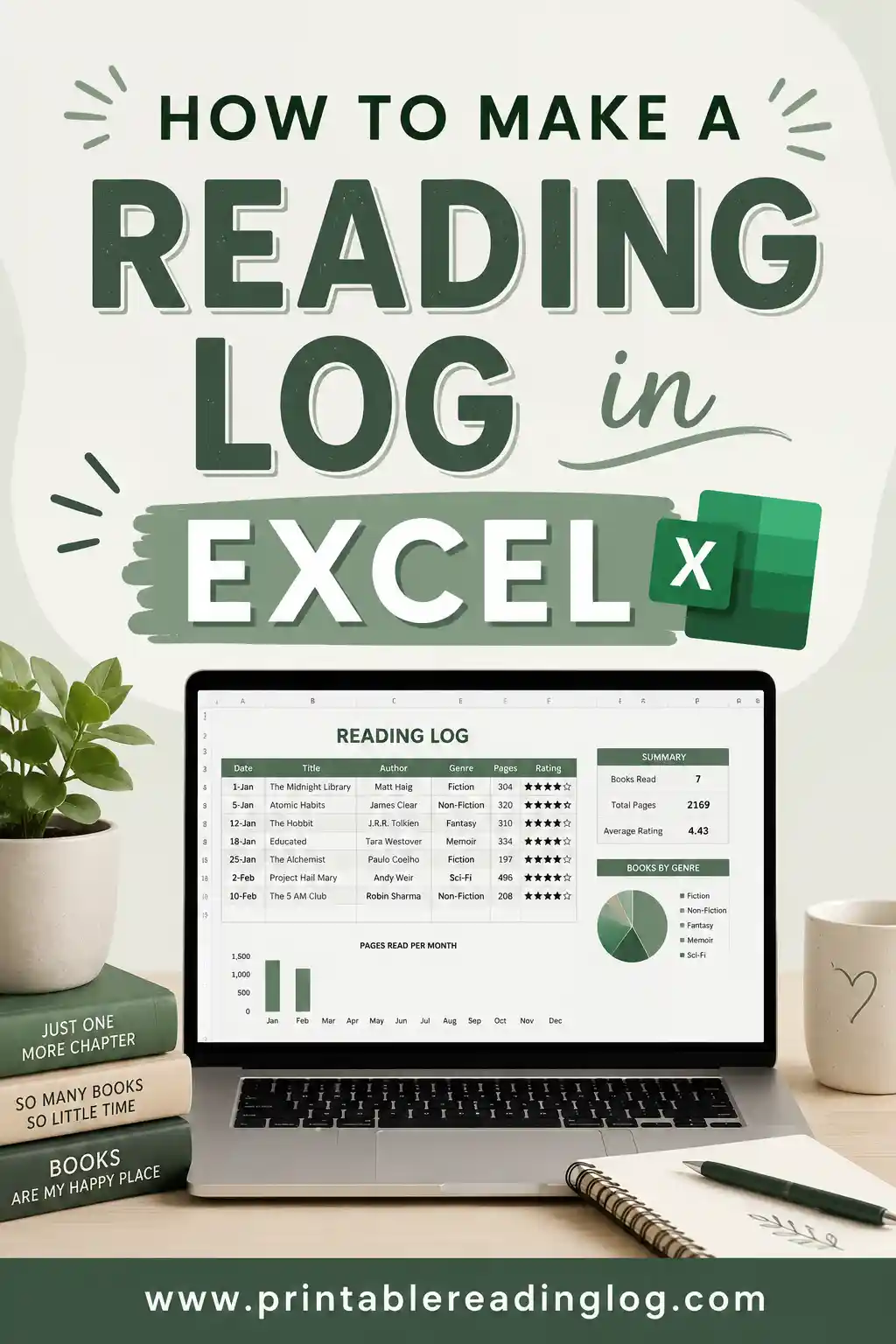
To make a reading log in Excel, open a new spreadsheet, add column headers like Title, Author, Date Finished, Pages, and Rating in row 1, then enter one book per row below. Add a SUM formula to total your pages and a COUNTA formula to count your books, and you've got a working tracker. It takes about ten minutes to set up and works on any computer with Excel or Google Sheets.
Prefer to skip the spreadsheet entirely? You can make a free printable reading log in under a minute, no formulas required, and print it to keep on paper. But if you want the spreadsheet route, here's exactly how to build one.
What You'll Need
This works in Microsoft Excel, Google Sheets, or Apple Numbers, since the steps are nearly identical. You don't need any advanced skills. If you can type in a cell and copy a formula, you can build this.
Decide before you start what you want your log to do. Just listing books? You need fewer columns. Tracking minutes for school or chasing a yearly goal? Add a couple more. Knowing your goal keeps the spreadsheet from getting cluttered.
Step 1: Set Up Your Columns
Open a blank spreadsheet. In row 1, type your column headers across the top, one per cell:
- A1: Title
- B1: Author
- C1: Date Finished
- D1: Pages
- E1: Genre
- F1: Rating
- G1: Notes
These seven columns cover most readers. If you're tracking minutes instead of pages, rename column D to "Minutes." If you want start and finish dates, add a column for each. Keep it to the fields you'll actually fill in, or the log starts to feel like a chore.
Step 2: Format the Header Row
Make row 1 stand out so it's easy to read at a glance.
- Click the row number "1" to select the whole row.
- Click Bold so the headers pop.
- Add a fill color (light gray or blue works well).
- Optionally, freeze the top row so headers stay visible as you scroll. In Excel, go to View, then Freeze Panes, then Freeze Top Row.
Freezing the header row is a small touch that makes a long log far easier to use once you have dozens of books.
Step 3: Enter Your Books
Now the fun part. Starting in row 2, enter one book per row. Fill in each column as you go.
| Title | Author | Date Finished | Pages | Genre | Rating |
|---|---|---|---|---|---|
| The Hobbit | J.R.R. Tolkien | 03/14 | 310 | Fantasy | 5 |
| Educated | Tara Westover | 03/28 | 334 | Memoir | 5 |
| Project Hail Mary | Andy Weir | 04/10 | 476 | Sci-Fi | 4 |
| Circe | Madeline Miller | 04/22 | 393 | Fantasy | 4 |
You can add books as you finish them, or back-fill a list you already have. Either way, each row is one book, and the spreadsheet grows downward over time.
Step 4: Add Formulas for Totals
Here's where a spreadsheet beats paper: it can do the math for you. Pick a row a few lines below your last book and add these.
Count how many books you've read (COUNTA counts non-empty cells in column A):
```
=COUNTA(A2:A500)
```
Add up all the pages you've read (SUM totals column D):
```
=SUM(D2:D500)
```
Find your average rating (AVERAGE of column F):
```
=AVERAGE(F2:F500)
```
The "500" just sets a generous range so the formulas keep working as you add books. Label these cells ("Total books," "Total pages," "Avg rating") so you remember what each number means. Now your log updates its own stats every time you add a book, which is great for an annual reading goal tracker.
Step 5: Add a Rating System
A numbers-only rating works, but a visual one is nicer to scan. You have a couple of options.
- Star symbols. Type star characters (★) directly into the rating cell. Five stars reads instantly.
- Conditional formatting. Highlight the rating column, then set rules so a 5 turns green, a 3 yellow, and a 1 red. Now your best books jump off the page.
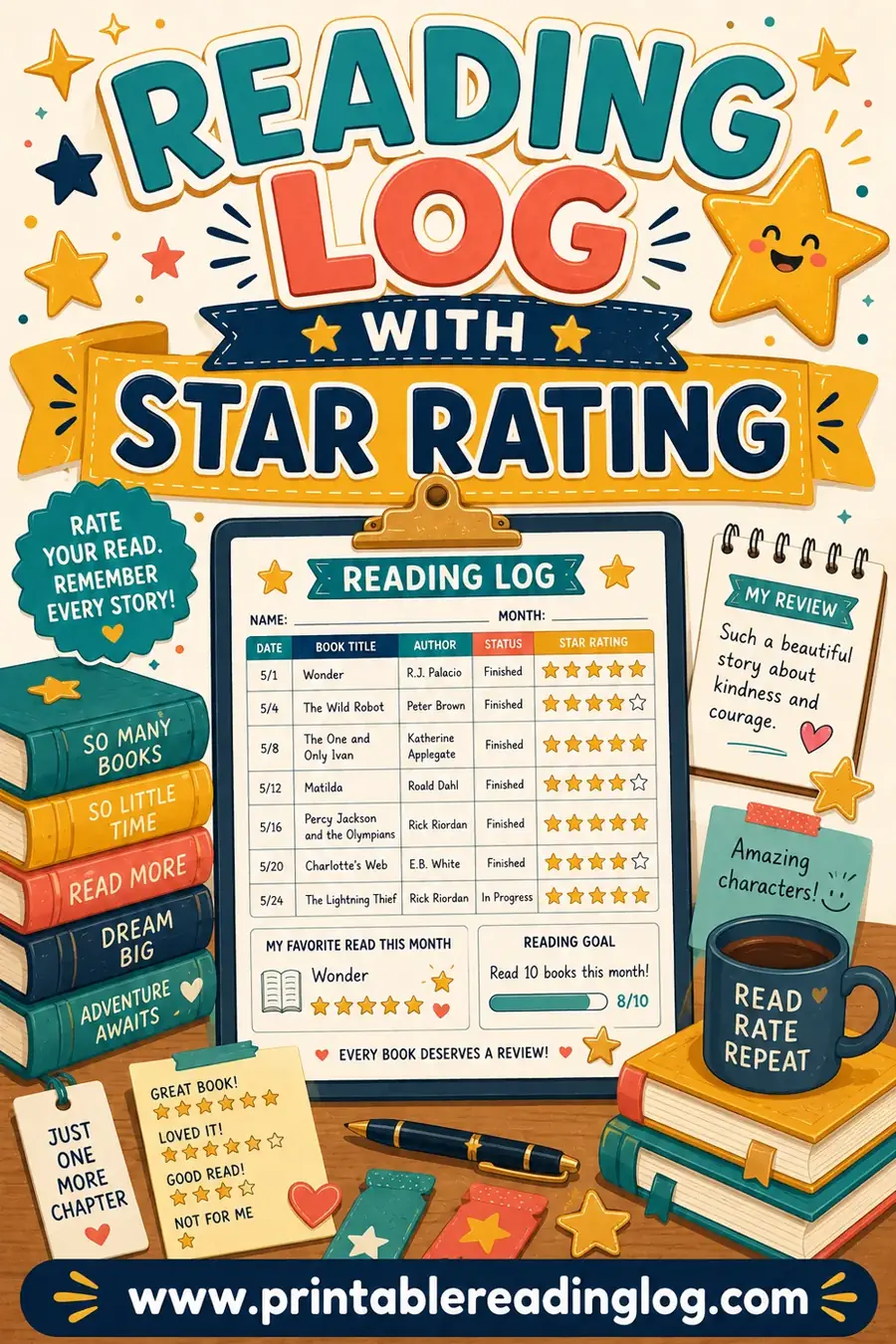
A clear rating column turns your log into a quick "what should I reread?" reference. If a visual star scale is your favorite part, a reading log with a star rating does this on paper too.
Step 6: Sort and Filter Your Log
One of Excel's best tricks is reorganizing your data without retyping anything.
- Click any cell inside your table.
- In Excel, go to the Data tab and click Filter (little dropdown arrows appear on each header).
- Click a header's arrow to sort by that column (highest rating, newest date) or filter to show only certain rows (say, just five-star books).
Want to see every fantasy book you've read, sorted by rating? Two clicks. This is where tracking reading by books in a spreadsheet really pays off.
Excel vs a Printable Log: An Honest Comparison
A spreadsheet is powerful, but it isn't the right tool for everyone. Here's a straight comparison.
| Feature | Excel Reading Log | Printable Reading Log |
|---|---|---|
| Auto totals | Yes, with formulas | No, count by hand |
| Sort and filter | Yes | No |
| Setup time | ~10 minutes | Under 1 minute |
| Needs a device | Yes | No |
| Screen-free | No | Yes |
| Great for kids | Not really | Yes |
| Customizable | Yes | Yes |
| Works offline | Mostly | Always |
| Cost | Free if you have Excel | Free |
Excel wins when you want automatic stats and the ability to slice your data. A printable wins when you want something screen-free, kid-friendly, and ready in seconds. Many people keep a spreadsheet for their own library and print paper logs for the kids.
Step 7: Print or Share Your Excel Log
When you want a paper copy of your spreadsheet log:
- Go to File, then Print.
- Set the print area to your table so you don't print empty cells.
- Choose landscape orientation if you have many columns.
- Use Fit Sheet on One Page so nothing gets cut off.
To share a Google Sheets version, click Share and send a link. Just remember that a shared sheet means whoever has the link can see your reading data, so keep it private if that matters to you.
Make Your Excel Log Smarter (Optional Upgrades)
Once the basic log is humming, a few small additions turn it into a genuinely useful dashboard. None of these take more than a minute, and you can skip any that don't fit how you read.
- A progress bar toward a yearly goal. In a spare cell, type your target (say, 50 books). In the cell next to it, divide your book count by the target: `=COUNTA(A2:A500)/50`. Format that cell as a percentage, and you instantly see how close you are. Add a data bar through conditional formatting and you get a real progress bar inside the cell.
- A "currently reading" flag. Add a column called Status and type "Reading" or "Done" per row. Filter on it to see exactly what's on your nightstand right now.
- A drop-down for genre. Select your Genre column, open Data, then Data Validation, and add a list like "Fantasy, Memoir, Sci-Fi, Mystery." Now you pick from a menu instead of retyping, which keeps your data tidy enough to filter cleanly later.
- A pages-per-month chart. Highlight your Date Finished and Pages columns and insert a simple bar chart. Seeing your reading rise and dip across the year is oddly motivating.
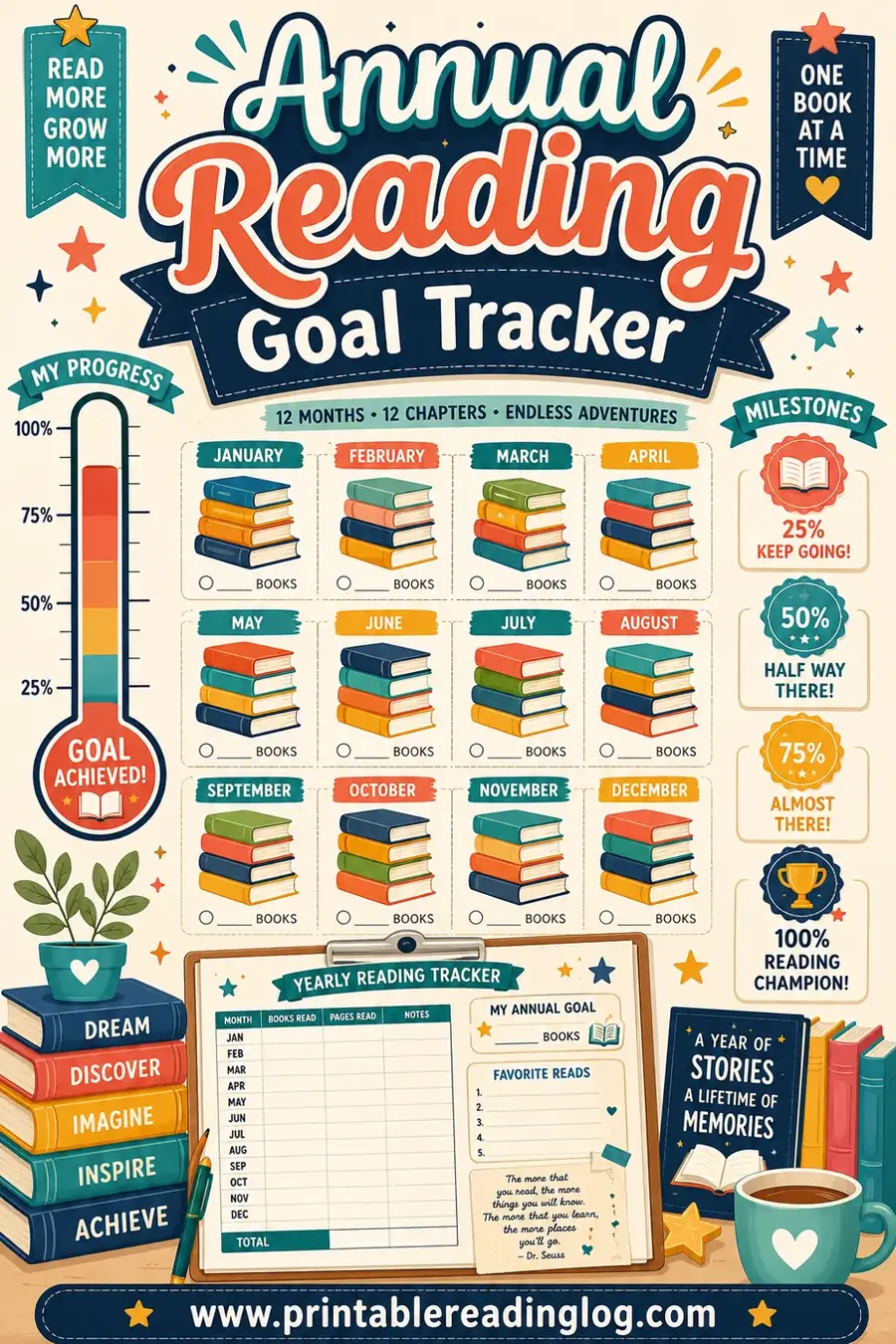
The point of these extras isn't to make the log complicated. It's to let the spreadsheet do work a paper log can't, like turning your raw entries into a picture of your reading year. If you want that yearly view without the setup, an annual reading goal tracker does the same thing on a single printable page.
A common formula problem and how to fix it
If your COUNTA or SUM cell shows a wrong number, the usual culprit is your range. Say you wrote `=SUM(D2:D50)` but you now have 60 books; the formula stops counting at row 50. That's exactly why this guide uses a generous range like D2:D500. Set the range wider than you'll ever need from the start, and your totals keep updating no matter how many books you add. If a SUM shows `#VALUE!`, check that every cell in the column holds a number, not stray text like "approx. 300."
When to Skip Excel Entirely
A spreadsheet is fantastic for data lovers, but it's overkill for a lot of readers. Skip Excel and use a printable instead if you:
- Are setting up a log for a child. Kids don't need formulas; they need a simple sheet and a pencil.
- Want zero screen time during reading.
- Don't want to fiddle with formulas and formatting.
- Need a log today without a ten-minute build.
- Like writing things by hand as part of the reading ritual.
In those cases, a ready-made printable saves you the whole setup. You pick a layout and print, and you're tracking in a minute flat. No COUNTA required.
Frequently Asked Questions
What columns should a reading log in Excel have?
The core columns are Title, Author, Date Finished, Pages, Genre, Rating, and Notes. Tracking minutes for school? Swap Pages for Minutes. Want more detail? Add start dates or a "would recommend" column. Keep it to the fields you'll actually fill in so the log stays easy to use.
How do I count the books I've read in Excel?
Use the COUNTA formula on your Title column, like `=COUNTA(A2:A500)`. It counts every non-empty cell, which equals the number of books you've logged. The number updates automatically every time you add a new book.
Can I make a reading log in Google Sheets the same way?
Yes. Google Sheets uses the same columns and the same formulas (COUNTA, SUM, AVERAGE). The menus differ slightly, but every step in this guide works. Sheets also makes it easy to share a link if you want.
Is Excel or a printable better for kids?
A printable is better for kids. Spreadsheets need a device, an account, and a bit of know-how, while a paper log just needs a pencil. For young readers, a screen-free printable reading log is simpler and keeps reading time off the screen.
How do I add star ratings in Excel?
Two easy ways. Type star symbols (★) directly into the rating cell for a visual scale, or use conditional formatting to color-code a 1–5 number column. Both make your top books easy to spot at a glance.
What if I don't want to build a spreadsheet at all?
Then a printable is your friend. Instead of setting up columns and formulas, you open the free reading log maker, pick a layout, and print. It takes under a minute and there's no software to wrestle with.
How do I track reading minutes instead of pages in Excel?
Rename your Pages column to Minutes and enter how long you read in each row instead of a page count. Your SUM formula then totals minutes automatically, which is perfect for school reading logs that ask for time rather than pages. You can keep both columns if you want to track pages and minutes side by side.
Can I use my Excel reading log on my phone?
Yes. Save the file to OneDrive or Google Drive and open it in the Excel or Google Sheets app on your phone. You can add a book the moment you finish it, anywhere you are. Just know that typing into a spreadsheet on a small screen is fiddlier than ticking a box on a printable, which is why many readers keep paper for on-the-go logging.
Ready to Track Your Reading?
Now you know how to build a reading log in Excel from the first column to the final print. If you love spreadsheets and stats, go for it. But if you'd rather skip the setup, you can make a free printable reading log in under a minute, pick the exact columns you want, and print it on the spot. No formulas, no account, no cost. Choose the tool that fits you, and happy reading.